
How to Set Up Two-Factor Authentication on OTCN
Install an authenticator app, turn on 2FA, scan the code, save backup codes and test the login: how to secure your OTCN account, and why apps beat SMS codes.
To set up two-factor authentication on OTCN, install an authenticator app, open the security settings in your client area, turn it on, scan the code with the app, enter the six-digit code to confirm and store backup codes safely offline. App codes are safer than SMS, which SIM-swap attacks can intercept.
[PRODUCT FACTS SHEET — Open decision 3: every OTCN-specific step, screen name, fee, limit and time in this article is a placeholder marked PFS and must be confirmed before publishing.]
Before you start
Install a reputable authenticator app and make sure your phone has a screen lock. [PFS: supported 2FA methods on OTCN.]
Why it matters for a trading account
A trading account holds money and can move it, so it is an attractive target. Passwords alone are often stolen through phishing, data breaches or reused passwords. Two-factor authentication adds a second check, usually a code from a device you control, so a stolen password is not enough on its own. For accounts that can place trades and request withdrawals, that extra step is one of the most effective protections available.
The options, compared
| Method | How it works | Main weakness |
|---|---|---|
| SMS code | Code sent by text message | SIM-swap attacks and interception |
| Authenticator app | Time-based code generated on your phone | Phone loss without backup codes |
| Push approval | Tap to approve on a trusted device | Approving prompts you did not start |
| Security key or passkey | Physical key or device-bound credential | Must be kept safe and backed up |
[PFS: which of these methods OTCN supports.]
Turning it on
Open security settings
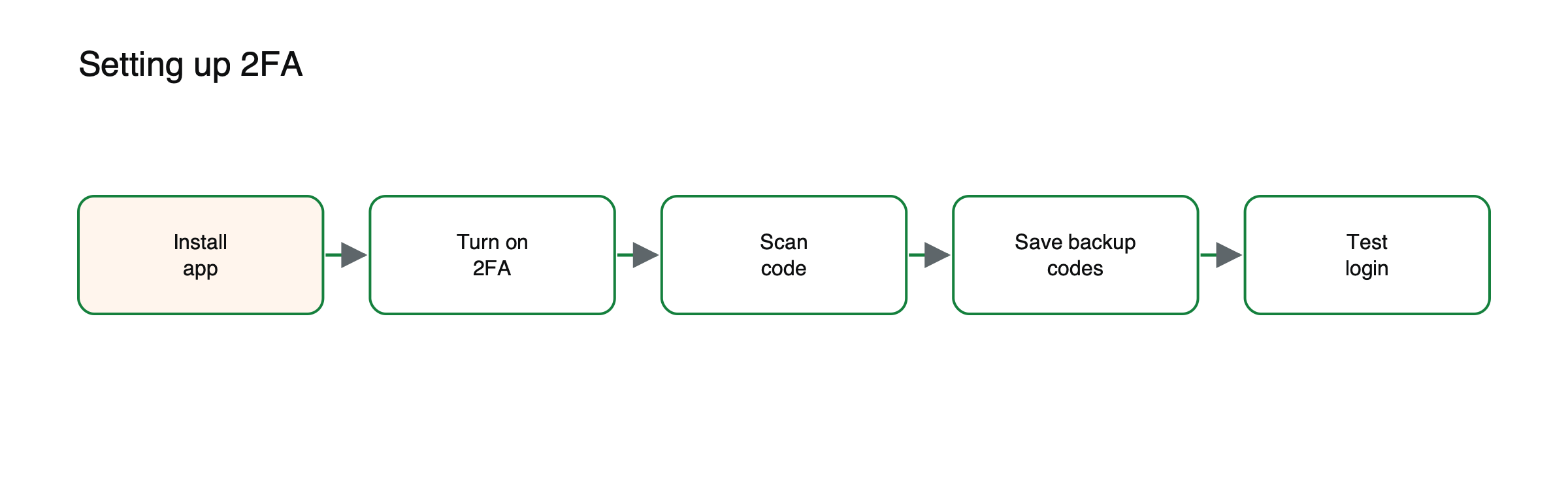
Figure: Setting up two-factor authentication.
[PFS: menu path.]
Turn on two-factor authentication
Choose the authenticator app option if available.
Scan the code
Use the app to scan the QR code, or type the setup key.
Confirm with a code
Enter the six-digit code from the app.
Save backup codes
Write them down and store them offline; you need them if you lose your phone.
Test it
Log out and back in. See what two-factor authentication is.
SIM swaps, illustrated
Suppose an attacker learns a trader’s email password from a data breach and wants to log in. (Illustrative scenario.) If the account uses SMS codes, the attacker may persuade the trader’s mobile carrier to move the phone number to a new SIM card, then receive the login code. The FBI reported $68 million in losses from SIM-swap attacks in 2021. If the account uses an authenticator app instead, the code is generated on the trader’s own phone, and a new SIM card does not help the attacker. That is why app-based codes or security keys are generally recommended over SMS.
If you lose your phone
Use your saved backup codes to log in, then set up two-factor authentication again on a new device. If you have no backup codes, contact support through official channels and expect identity checks before access is restored. [PFS: OTCN’s account recovery process and expected times.] Never share backup codes or authenticator setup keys with anyone, including people claiming to be from support.
Common mistakes
Relying on SMS codes when an app is offered, storing backup codes in your email, and approving login prompts you did not start. See what a SIM-swap attack is and how to open an OTCN account.
Phishing and fake login pages
Two-factor codes can still be stolen if you enter them on a fake website. Attackers send emails or messages that imitate a broker, linking to a convincing copy of the login page, and relay the code to the real site in real time. Always type the web address yourself or use a saved bookmark, check the address before entering details and be wary of urgent messages asking you to log in. See how to protect a crypto account from phishing.
Approval fatigue
Some attackers who already have a password send repeated login approval prompts, hoping the user will eventually tap approve to stop them. If you receive a prompt you did not start, deny it and change your password immediately.
Securing the rest of your account
Two-factor authentication works best alongside other habits: a unique, strong password for each account, a password manager, a locked phone, up-to-date software and alerts for logins and withdrawals. [PFS: OTCN security alerts and withdrawal protections available.]
How authenticator codes work
Authenticator apps generate a new six-digit code every 30 seconds from a secret key shared once, when you scan the setup QR code. The app and the server calculate the same code from that key and the current time, so no message needs to be sent. That is why app-based codes work without mobile signal and cannot be intercepted by redirecting text messages. It is also why the setup key must be kept secret: anyone who copies it can generate your codes.
Passkeys and security keys
Newer methods replace codes entirely. Security keys and passkeys use cryptography tied to a device and to the genuine website, so they cannot be used on a fake login page. Where available, they offer the strongest protection against phishing. [PFS: whether OTCN supports passkeys or security keys.]
Warning signs of account takeover
- Login alerts from locations or devices you do not recognize
- Two-factor prompts you did not request
- Changes to email, phone number or withdrawal details you did not make
- Password reset emails you did not ask for
If you see any of these, change your password, check your security settings and contact support through official channels. [PFS: OTCN’s process for reporting suspicious activity.]
Common misreadings
- Believing two-factor authentication makes an account impossible to hack.
- Assuming backup codes are only needed rarely and can be stored anywhere.
Protect the email account first
Your email account is often the key to everything else, because password resets are sent there. Turning on two-factor authentication for your email, ideally with an authenticator app or security key, prevents an attacker who steals your email password from resetting your trading account password. Use a separate, strong password for email that you do not use anywhere else.
Devices and backups
Some authenticator apps can back up codes to the cloud or another device, which helps if a phone is lost but adds a new place to protect. If you use such backups, secure that account with its own strong password and two-factor authentication. When changing phones, move your authenticator accounts before wiping the old device.
A security checklist
- Two-factor authentication on, using an app or security key
- Backup codes stored offline
- Unique password stored in a password manager
- Email account secured with its own two-factor authentication
- Login and withdrawal alerts turned on
Backup codes, illustrated
Suppose a trader’s phone is stolen on holiday, with the authenticator app on it. (Illustrative scenario.) If the trader stored backup codes on paper at home, a family member can read one out, the trader logs in from a new device and sets up two-factor authentication again within minutes. Without backup codes, regaining access may require identity checks that take days, during which open positions cannot be managed. Spending five minutes storing backup codes properly can save days of disruption.
Shared devices
Avoid logging in to a trading account on shared or public computers. If you must, log out fully afterward and never let the browser save passwords.
Travelling
Authenticator apps work without mobile signal, which makes them useful abroad, where SMS codes may not arrive.
What a provider should offer
Good practice for trading platforms includes app-based or key-based two-factor authentication, alerts for new logins and withdrawals, the ability to review active sessions and log out other devices, and a clear, secure recovery process. Some platforms also allow clients to whitelist withdrawal destinations or add a waiting period before changes to withdrawal details take effect. When choosing a provider, these features are worth checking alongside costs and products. [PFS: OTCN security features.]
Reviewing settings regularly
Review the devices logged in to your account, the two-factor method in use and your recovery details. Remove phones and devices you no longer use, and make sure your backup codes are where you think they are.
Frequently asked questions
Is SMS two-factor authentication better than nothing?
Yes. It still stops attackers who only have your password, though app-based codes or security keys are stronger.
Can support staff ask for my two-factor code?
Legitimate support staff should never ask for your codes or backup codes.
[RISK WARNING — Open decision 2: approved CFD and leverage risk warning to be inserted here before publishing.]
This article is educational content and does not constitute financial, investment, legal or tax advice. Digital assets are volatile and you may lose the amount you invest.